Overview
This hands-on demo will introduce the Microsoft workflow for developing Power BI Reports.
We will learn how to:
- Leverage SharePoint for hosting flat files.
- Data preprocessing (cleaning/transformations) using Power Query.
- Developing reports with both built-in visuals and custom visuals.
- Creating a data model.
- Introduction to DAX measures and columns
- Publishing a report (this will be demo only)
Exercise
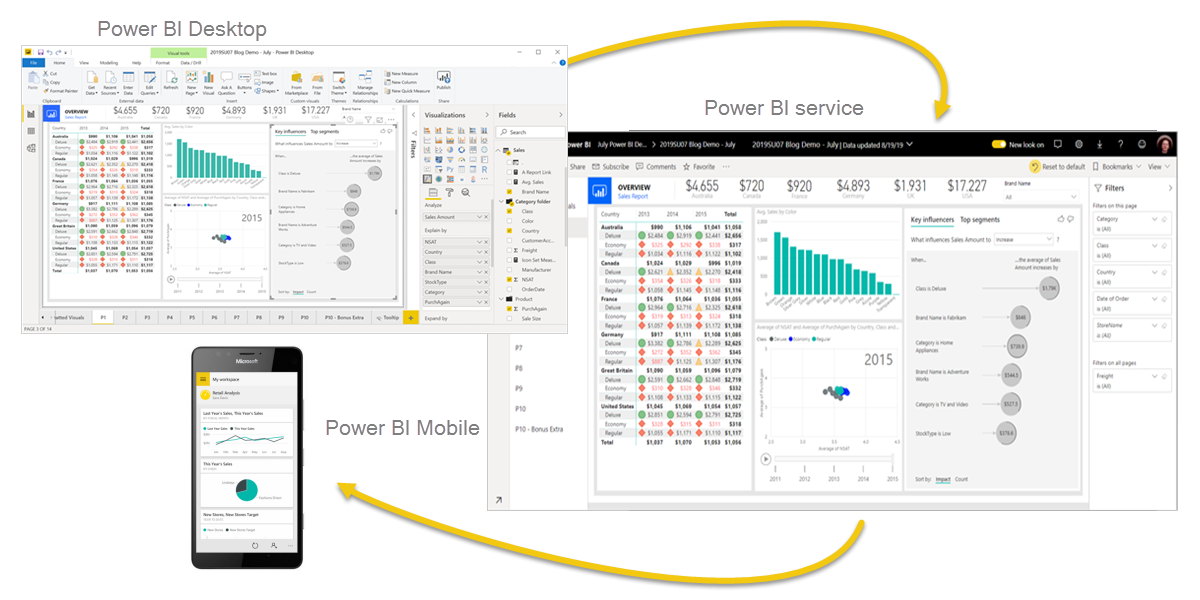
Power BI, which stands for "Power Business Intelligence," is a Microsoft software suite that allows users to connect to various data sources, transform and analyze the data, and visualize it through interactive dashboards and reports, essentially turning raw data into actionable insights for business decision-making; it's considered a powerful tool for business intelligence (BI) with user-friendly features for both technical and non-technical users alike

| Workflow Phase | Item |
| Data Source |
Excel Sheet Download & connect via local Excel Workbook |
| Power Query |
|
| Power BI Data Model | Set one-to-many cardinality from Id to Id, filtering in both directions. |
| Power BI Report |
|
| Publish to Service | All preceding steps and including this step are fully supported using the free version of Power BI. The following rows require Professional license. |
| Set Refresh |
|
| Share | Share Privately or Publicly |
-
CustomerShoppingBehaviorDataset.csvDownloaded from Kaggle.
This dataset contains information about customer shopping patterns, including demographics, purchase history, and buying behavior.
Host on SharePoint
Upload the file to OneDrive
Right-click in OneDrive on the file and select Open/Open in Excel
In Excel, File/Info/Copy Path
Use this copied path as a WEB import into Power BI (with the ?web=1 removed) to enable live updates
Power BI Report Ideas: Customer Shopping Behavior
- Sales Overview by Demographics
- Product Category Performance
- Seasonal Sales Trends
- Customer Behavior Insights
